

To learn how the Teams app handles Teams users, teams, channels, group chats, and incident card data, see the Flashduty Microsoft Teams app privacy policy and Flashduty Microsoft Teams app terms of use.
1. Data and permissions
The Flashduty Teams app processes Teams data only as needed to send alert notifications, complete linking configuration, and handle incident card actions.
The Flashduty Teams app does not read ordinary Teams chat content that is unrelated to Flashduty functionality. It processes only messages sent to the bot in personal chats, messages where the bot is mentioned in teams or group chats, card button actions, installation and conversation reference data required for the app to work, and data needed to send or update Flashduty notifications.
The current app package does not request Microsoft Graph permissions for reading organization-wide chat content. If a future version introduces new Teams permissions or data processing scenarios, Flashduty will update this documentation and the related privacy notice.
2. Get the App from Microsoft Teams
1
Find Flashduty
In Microsoft Teams, select Apps, search for Flashduty, and open its details page.
2
Add the App
Select Add. Choose the destination that matches your use case: a team/channel, a group chat, or your personal chat.
In the commands below, replace
{ID} with the Flashduty Microsoft Teams integration ID. Replace {ChatName} with the group chat name.3. Link team
1
Find App
In Teams, open Apps, find Flashduty, and select Add to a team.
If you cannot find or add the app, contact your Microsoft Teams administrator.
2
Add to Team
Add the app to the target Team.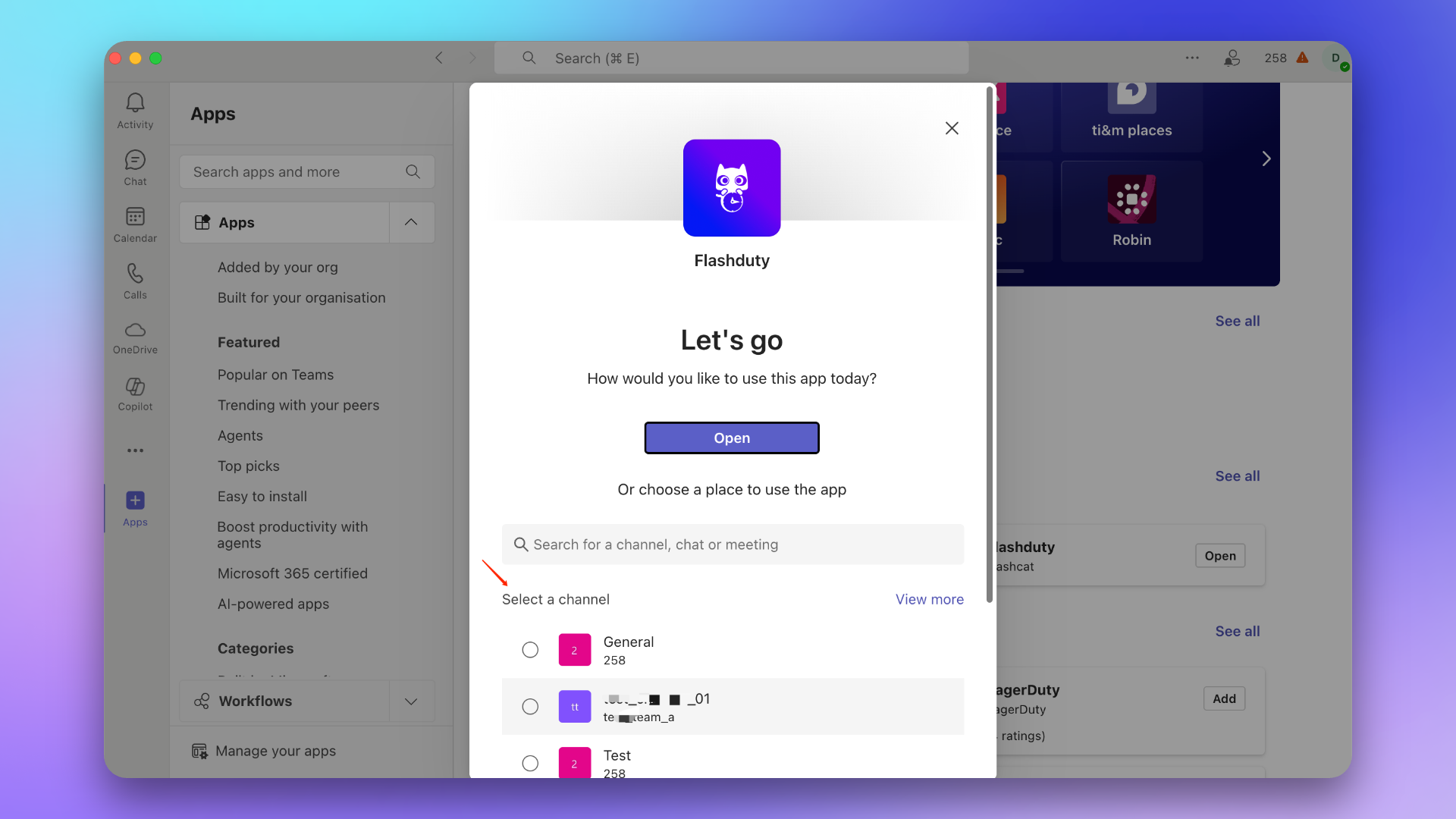
3
Send Link Command
In the Team’s General channel, @Flashduty and send 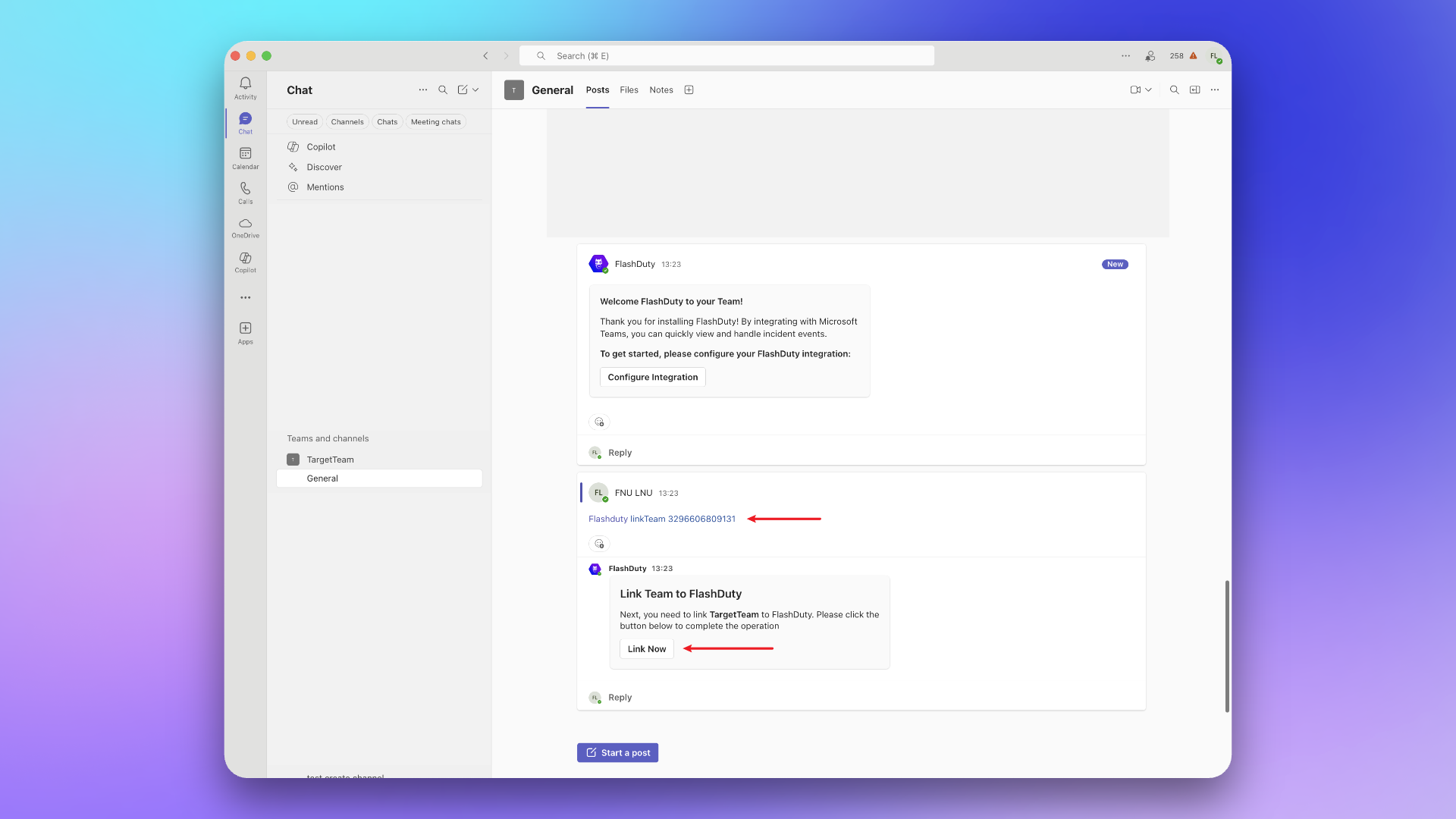
linkTeam {ID}, then select Link Now.4
Unlink the Team
To remove this Team’s link, in the same channel send
@Flashduty unlinkTeam {ID}. After you select Unlink in FlashDuty in the response card, Flashduty removes the link automatically and shows a success message.4. Link chat
1
Find App
In Teams, open Apps, find Flashduty, and select Add to a chat.
If you cannot find or add the app, contact your Microsoft Teams administrator.
2
Add to Chat
Add the app to the target Chat.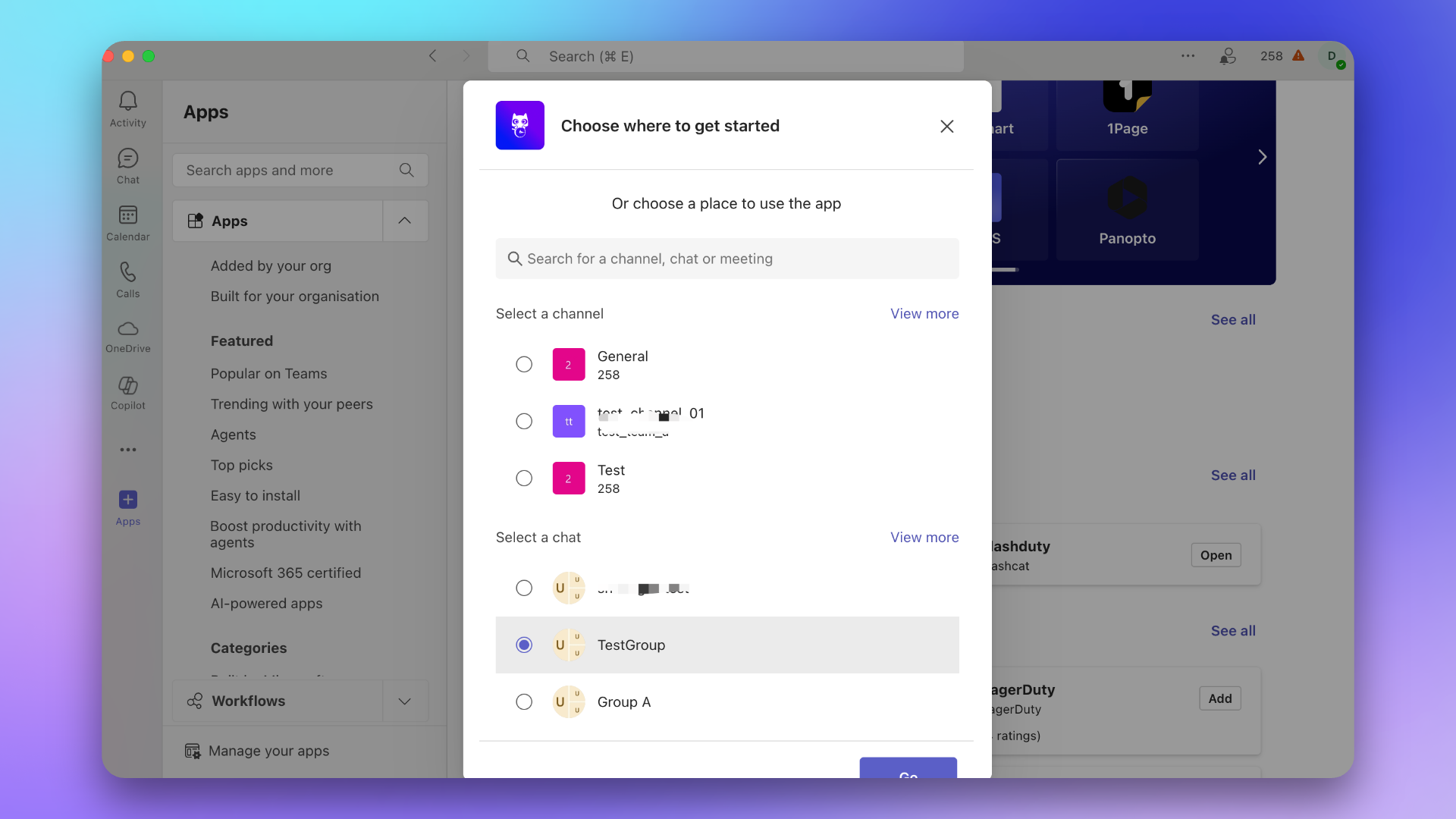
3
Send Link Command
In the group chat, @Flashduty and send 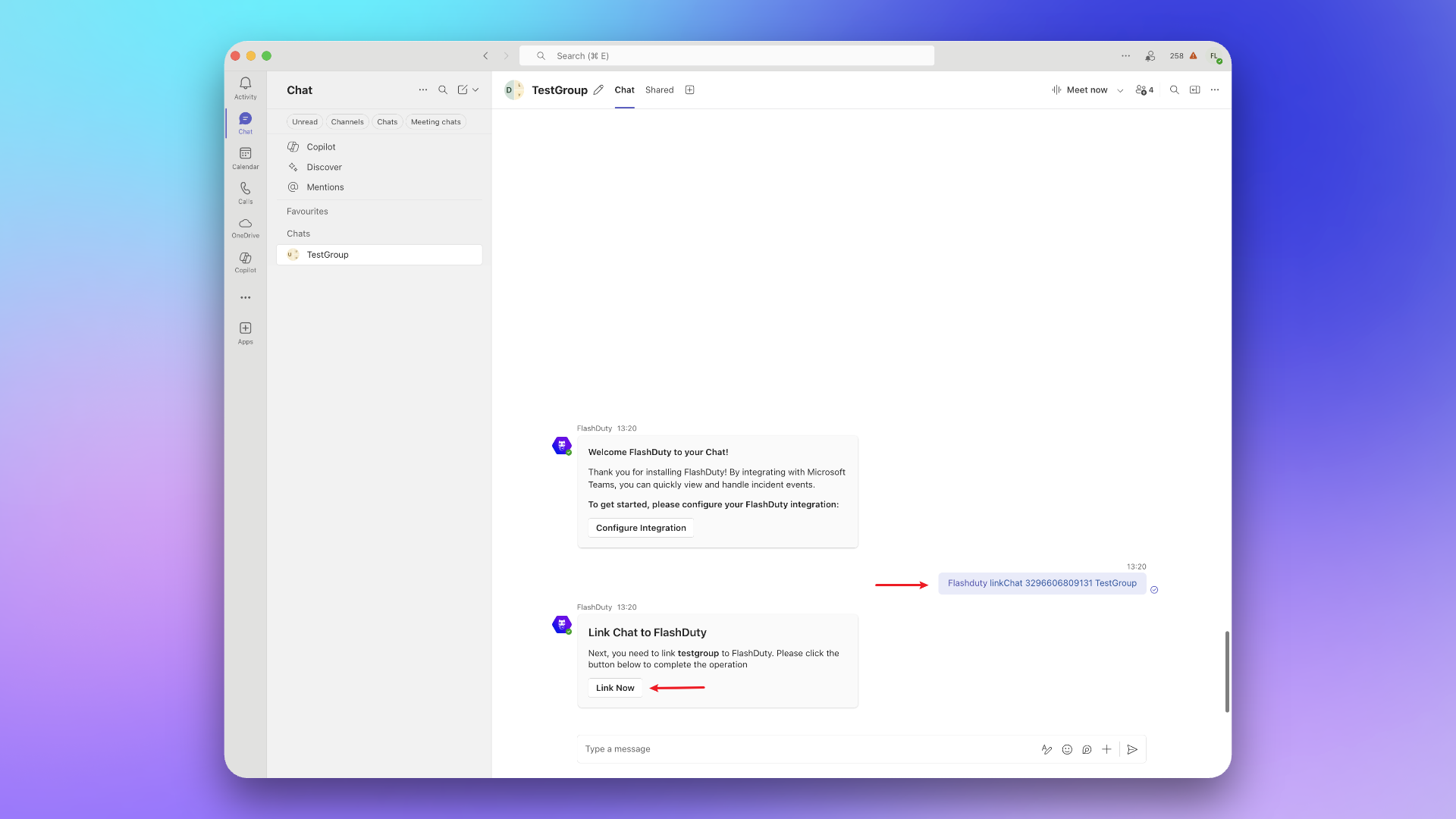
linkChat {ID} {ChatName}, then select Link Now.4
Unlink the Chat
To remove this group’s link, send
@Flashduty unlinkChat {ID} in the same group chat. After you select Unlink in FlashDuty in the response card, Flashduty removes the link automatically and shows a success message.5. Notification card actions
When incident notifications are pushed to Microsoft Teams, the notification cards may include the following interactive actions. The available buttons depend on the Flashduty card you receive and the backend configuration:- Acknowledge: Mark that you have started handling the incident
- Resolve: Mark the incident as resolved and close it
- Snooze: Temporarily suspend the incident and receive a reminder after a specified time
- Custom Actions: Trigger your pre-configured custom actions (such as restarting services, rolling back changes, etc.)
War room functionality is not currently supported for Microsoft Teams. If you need to use the war room feature, consider using Slack, Feishu/Lark, Dingtalk, or WeCom integration instead.
6. Link user
1
Find App
In Teams, open Apps, find Flashduty, and select Open.
If you cannot find or open the app, contact your Microsoft Teams administrator.
2
Open App
Click Open App.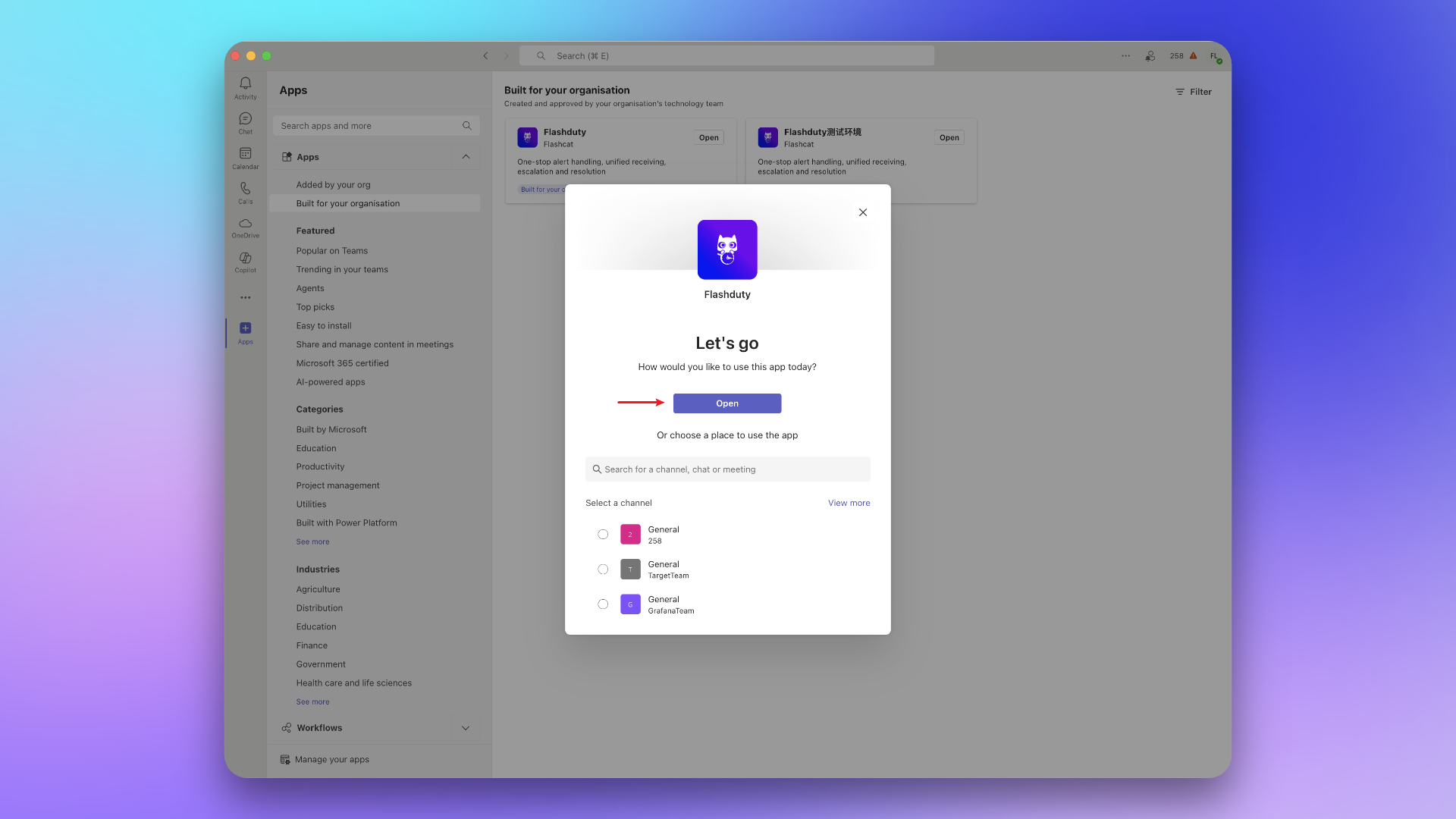
3
Send Link Command
Send 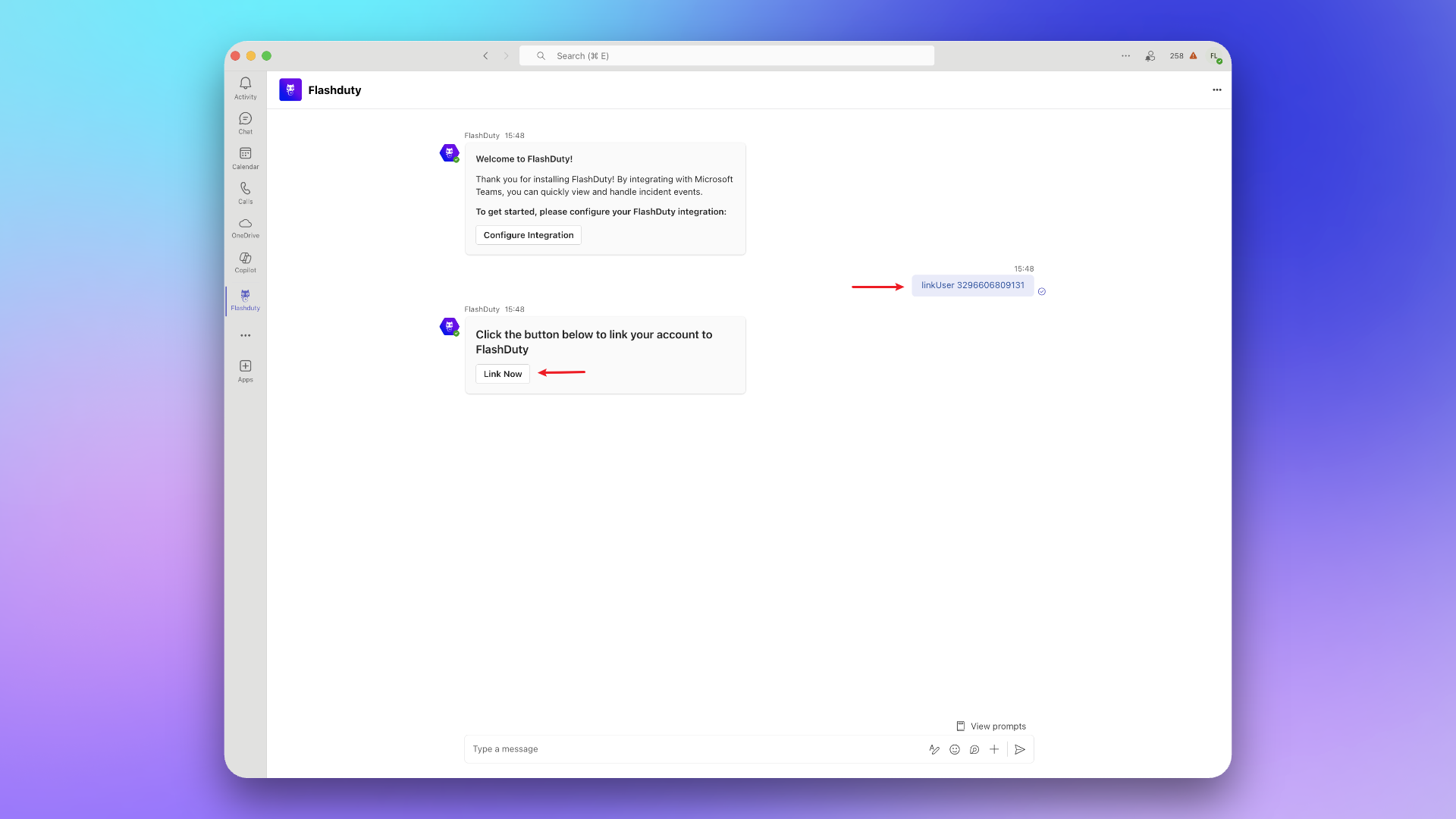
linkUser {ID} in your personal chat with Flashduty, then select Link Now.4
Unlink Your Account
To remove your Teams account link, send
unlinkUser {ID} in the same personal chat. After you select Unlink in FlashDuty in the response card, Flashduty removes the link automatically and shows a success message. If your account is already linked, you can also go to Integration Center → Instant Messaging → Microsoft Teams → Linked Users, select Unlink me, and then select Confirm in the dialog.7. FAQ
Team or individual not receiving messages?
Team or individual not receiving messages?
Go to Integration Center → Instant Messaging → Microsoft Teams, check if teams and users have been successfully linked.
How to view linked teams and users?
How to view linked teams and users?
Go to Integration Center → Instant Messaging → Microsoft Teams, view in Linked Teams and Linked Users.
How to unlink teams and users?
How to unlink teams and users?
Use the matching command in its original Teams context:
unlinkTeam {ID} in a Team channel, unlinkChat {ID} in a group chat, or unlinkUser {ID} in your personal chat. After you select Unlink in FlashDuty in the response card, Flashduty removes the matching link automatically. If your account is already linked, you can also select Unlink me under Linked Users, then select Confirm in the dialog.