

Configure Routing Rules
Go to Integration Center → Alert Events → Integration Details → Routing → Add Route.Configuration
Routing Modes
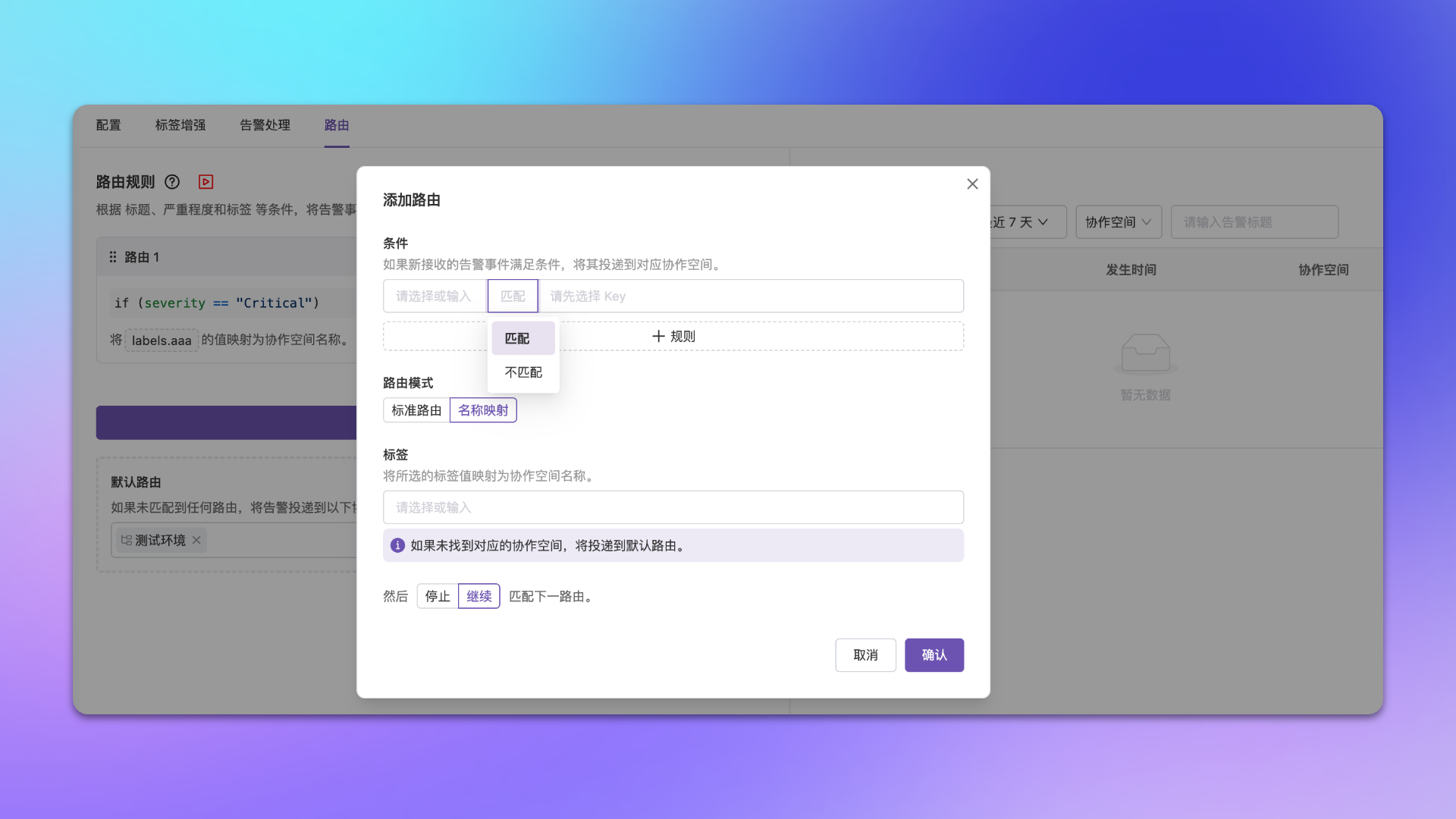
Operation Tips
Edit History
Routing rules support viewing edit history, helping you track configuration changes and quickly roll back when needed. Click the Edit History button on the routing configuration page to open the sidebar panel. History records are grouped by date, and each record includes the version number, operator, and modification time. The currently active version is labeled Current Version. You can perform the following actions:Edit history supports infinite scroll loading, fetching 50 records at a time.
Configuration Examples
- Route by Business Group
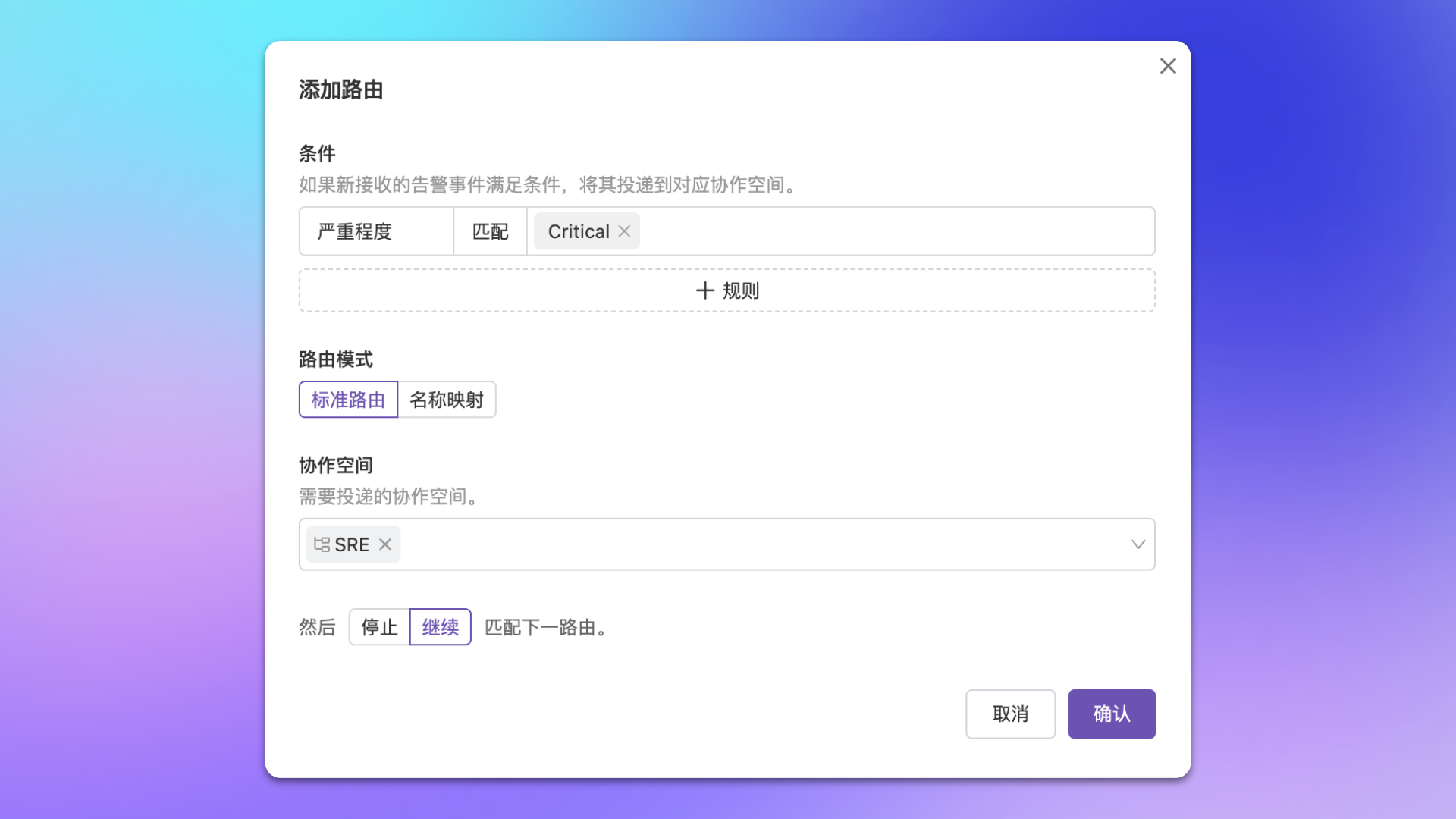
- Route by Alert Level
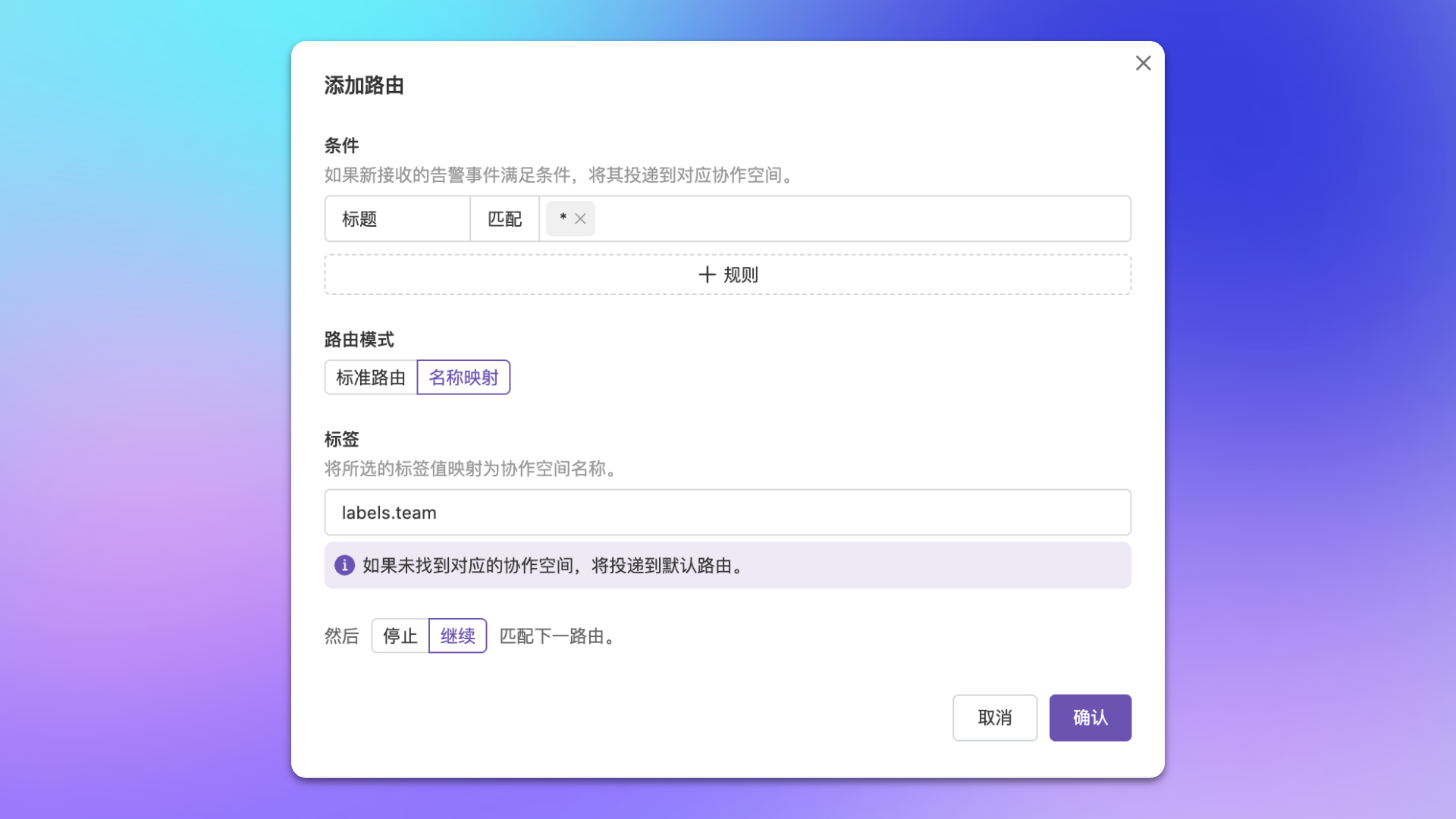
- Name Mapping Mode
Scenario: Deliver alerts from the same business group in monitoring platform to corresponding channel.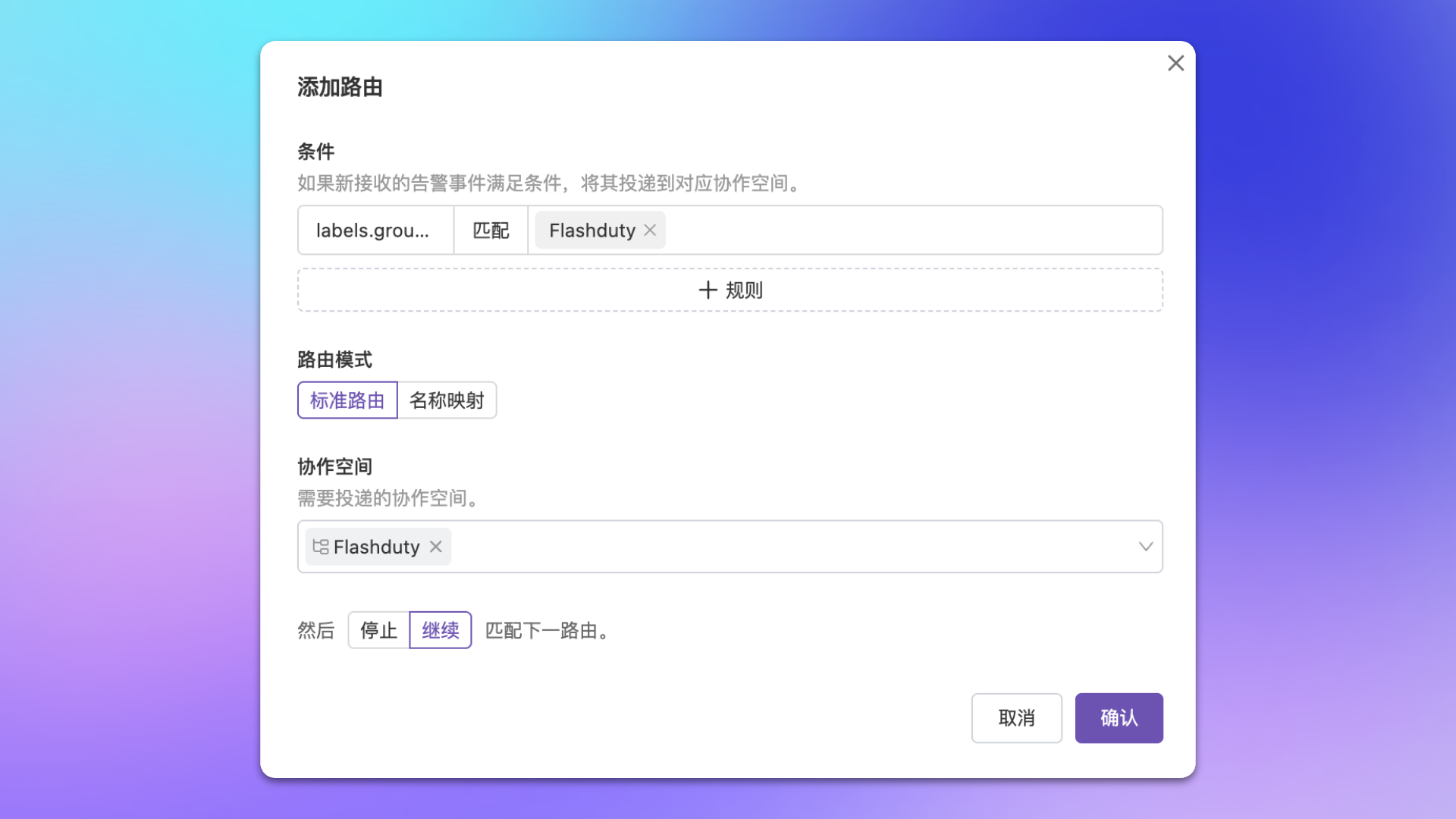
FAQ
Routing rule not taking effect?
Routing rule not taking effect?
Check if alert event attributes/labels match the rule, and if rule configuration is correct.
Multiple rules match the same alert, delivering to the same channel?
Multiple rules match the same alert, delivering to the same channel?
Each channel will generate a corresponding incident. We recommend selecting multiple channels in the same rule to avoid duplication.
Not receiving alerts after configuring routing rules?
Not receiving alerts after configuring routing rules?
Confirm reported alerts can hit configured routing rules. We recommend configuring a default fallback route to receive unmatched alerts.
When flow control is set to 'Stop', will default route still match?
When flow control is set to 'Stop', will default route still match?
No. The default route only takes effect when no routing rules match the alert. If any rule has already matched (regardless of whether flow control is set to ‘continue’ or ‘stop’), the default route will not be triggered.
Further Reading
Integrate Alerts
Learn the difference between dedicated and shared integrations
Configure Filter Conditions
Learn condition matching syntax
Configure Label Enhancement
Dynamically generate or modify alert labels
Configure Alert Processing
Cleanse and transform alert data at source